Personalized Nameservers: Setup, Glue Records, and Pitfalls
What a Personalized Nameserver Is
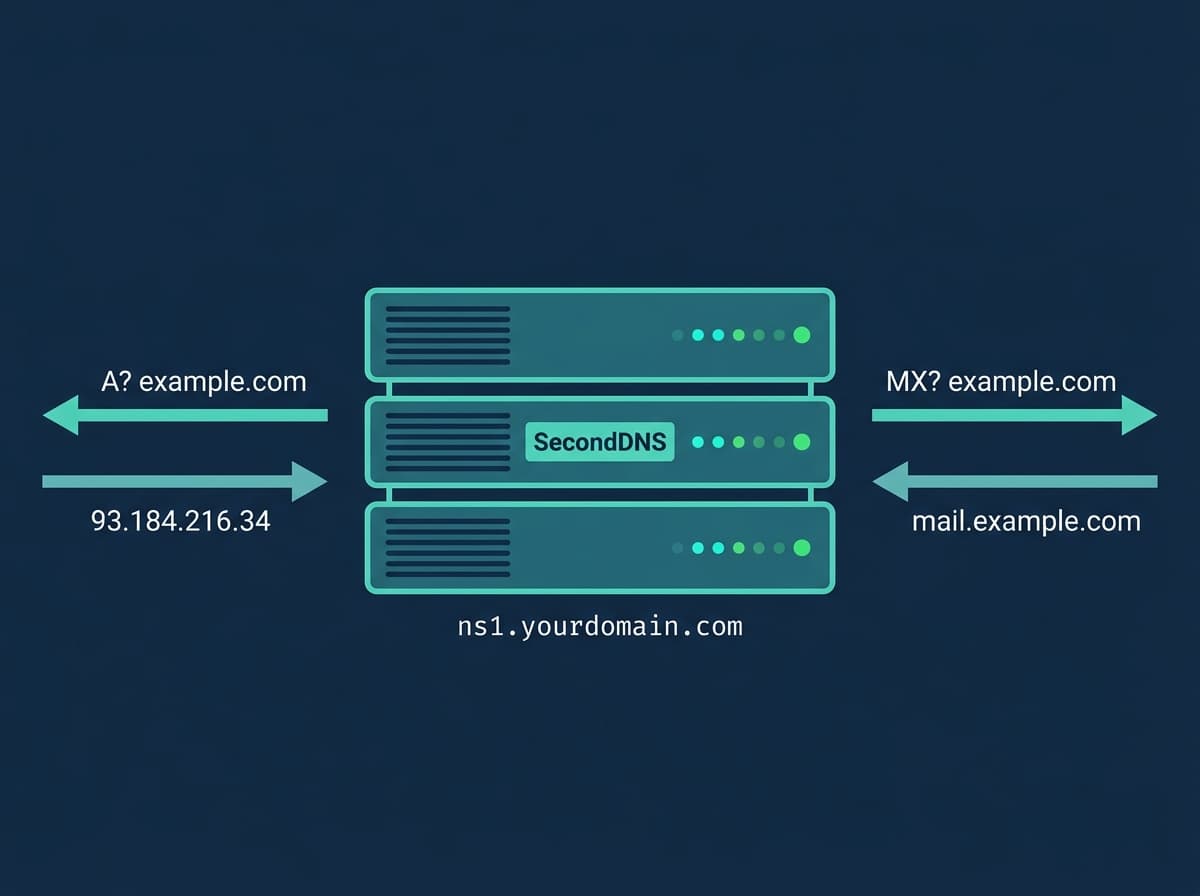
A personalized nameserver (also called a vanity, private, branded, or custom nameserver) is a DNS nameserver that answers under your own domain name instead of your provider's. Instead of your zones being served by ns1.seconddns.com, they are served by a hostname you choose — for example ns2.yourdomain.com — that points to the same secondary server.
The Personalized NS add-on lets you configure your own hostname pointing to our secondary server. To anyone querying your domains, it looks as if you run your own DNS infrastructure. This is common for hosting providers and agencies that want their brand on the nameservers their clients see.
Personalized NS is an optional add-on on top of any secondary DNS plan — see pricing.
How Personalized Nameservers Work
A nameserver hostname is just a normal DNS name with an A record (and optionally an AAAA record for IPv6) that resolves to an IP address. When you set up a personalized nameserver, two things have to be true:
1. The hostname ns2.yourdomain.com must resolve to our secondary server's IP address (via an A/AAAA record you create). 2. The world must be able to find that IP without already knowing it — which, when the hostname lives inside the domain it serves, requires a glue record.
Once both are in place and you enter the hostname in the SecondDNS dashboard, our secondary server starts answering authoritatively for your zones under your branded name.
When You Need a Glue Record
If your NS hostname is in the same domain as the zone itself — for example, NS ns2.yourdomain.com for the domain yourdomain.com — a circular dependency arises: to find the nameserver's IP you first need to ask the nameserver. This chicken-and-egg problem is solved by a glue record.
A glue record is an A (or AAAA) record that the registrar stores directly in the parent TLD zone, alongside the delegation. It tells resolvers the IP of ns2.yourdomain.com without them having to resolve the hostname first. Glue is only needed when the nameserver hostname is in-bailiwick — that is, inside the domain it serves. If you use a hostname in a different domain you already control (for example ns2.yourbrand.net for the domain yourdomain.com), no glue is required, because that other domain resolves independently.
Most registrars support glue records, but not all — and the feature is named differently across them. Check with your registrar before buying the Personalized NS add-on.
How to Register a Glue Record at Your Registrar
The feature is usually called 'register a host', 'private nameservers', 'host records', or 'glue records'. The general flow is the same everywhere: you register the host ns2.yourdomain.com with an IP, then the registrar publishes the glue automatically.
- Namecheap: Domain List > Manage > Personal DNS Server (a dedicated section where you register your nameserver hosts). - GoDaddy: Domain Settings > Manage DNS, then the Host names section (labels vary slightly by account version) — add the hostname with the IP. - Cloudflare Registrar: glue / child-nameserver support is limited and TLD-dependent. Check the current Cloudflare docs; if it is not available for your TLD, use an out-of-bailiwick hostname (in a different domain) or a registrar that supports glue. - Other registrars: look for 'Register a Nameserver', 'Child Nameservers', or 'Host Records'.
Use the IPv4 (A) value, and add the IPv6 (AAAA) value too if your registrar supports it and you want IPv6 glue. After registering the host, you also add an A/AAAA record for the same hostname inside your domain's zone so it resolves consistently.
Where to Find the IP for the A Record
Our secondary server IP is shown in the dashboard — on the Dashboard page and on the Add Zone page (DNS Zones → Add Zone). Always use that value rather than an IP from an old guide or a screenshot: it may be specific to your account, and it can change if your zone is reassigned. If both IPv4 and IPv6 are listed, use the IPv4 address for the A glue record and the IPv6 address for the AAAA glue record.
NS Must Not Point to a Proxy or CDN
The A record (and glue) of your personalized NS must point directly to our server IP. Do not use Cloudflare Proxy (the orange cloud), or any other CDN or reverse proxy.
Those services proxy HTTP/HTTPS traffic, not DNS. Authoritative DNS runs over port 53 (UDP and TCP), which does not pass through an HTTP proxy. If you put the personalized NS behind a proxy IP, resolvers will reach the proxy instead of our nameserver and your domains will fail to resolve. The glue and A record must contain the real server IP from the dashboard.
TTL Settings and DNS Propagation
After adding or changing the NS and glue record, wait for propagation before relying on it. For delegation changes the governing value is the NS record TTL at the parent (your registrar), not the in-zone record TTL. If the previous record had a high TTL — for example 86400 (24 hours) — resolvers may keep serving the old value until it expires, so changes will not take effect immediately.
Verify resolution before configuring the hostname in the dashboard:
dig ns2.yourdomain.com A +short
dig ns2.yourdomain.com AAAA +short
Both should return the IP shown in your dashboard. To specifically confirm the glue is published at the parent, query a TLD nameserver directly without recursion and look at the ADDITIONAL section of the answer:
dig +norecurse @a.gtld-servers.net ns2.yourdomain.com AReplace a.gtld-servers.net with a nameserver for your TLD (for .com/.net it is the gtld-servers.net set). If the glue is in place, the IP appears in the ADDITIONAL section. A plain dig +short only tells you the hostname resolves — it does not prove glue exists at the parent, which matters for in-bailiwick nameservers. Once both checks pass, configure the hostname in the SecondDNS dashboard.
Personalized Nameservers and the SecondDNS API
Once you configure a Personalized NS in the dashboard, our API starts returning your nameserver hostname instead of our standard one. This affects integrations — for example, hosting control panel plugins (cPanel, Plesk, DirectAdmin, CyberPanel) that automatically fetch the NS to configure zones will now use your branded hostname.
If you set up the integration before enabling Personalized NS, re-run the panel integration's sync or re-fetch the nameserver so new zones get the branded NS record. Existing zones keep whatever NS they were created with until you update them.
What Happens If You Cancel the Add-on
If the Personalized NS add-on is cancelled, your custom hostname is no longer registered with us and DNS queries sent to it will not be answered. Any domain still delegated to ns2.yourdomain.com would then fail to resolve.
Before cancelling, update the NS records at your registrar back to our standard nameservers, wait for the old TTL to expire, and confirm your domains resolve through the standard nameservers. Only then remove the glue record and cancel the add-on.
Troubleshooting Personalized Nameservers
dig returns no IP for your NS hostname The A record or glue is missing or not yet propagated. Confirm the A/AAAA record exists in your zone and that the glue is registered at your registrar. Wait for the previous TTL to expire.
Domains using the personalized NS fail to resolve Usually the glue record is missing (in-bailiwick hostname without glue) or the NS points to a proxy/CDN IP instead of the real server IP. Check both.
The dashboard rejects the hostname Make sure the hostname already resolves to our server IP (verify with dig) before entering it in the dashboard — it must be live first.
Panel plugin still uses the old nameserver The plugin cached the previous NS. Re-run the panel integration's sync so it fetches the branded hostname from the API.
Related Guides
Set up and run your secondary DNS:
- How to Set Up a Secondary DNS Server - Understanding AXFR Zone Transfers - DNS Redundancy: Why It Matters and How to Achieve It - How to Add Secondary DNS to cPanel/WHM - How to Add Secondary DNS to Plesk - How to Add Secondary DNS to DirectAdmin - How to Add Secondary DNS to CyberPanel - Secondary DNS Server: What It Is and How It Works