How to Add Secondary DNS to Plesk Hosting Panel
Why Your Plesk Server Needs a Secondary DNS
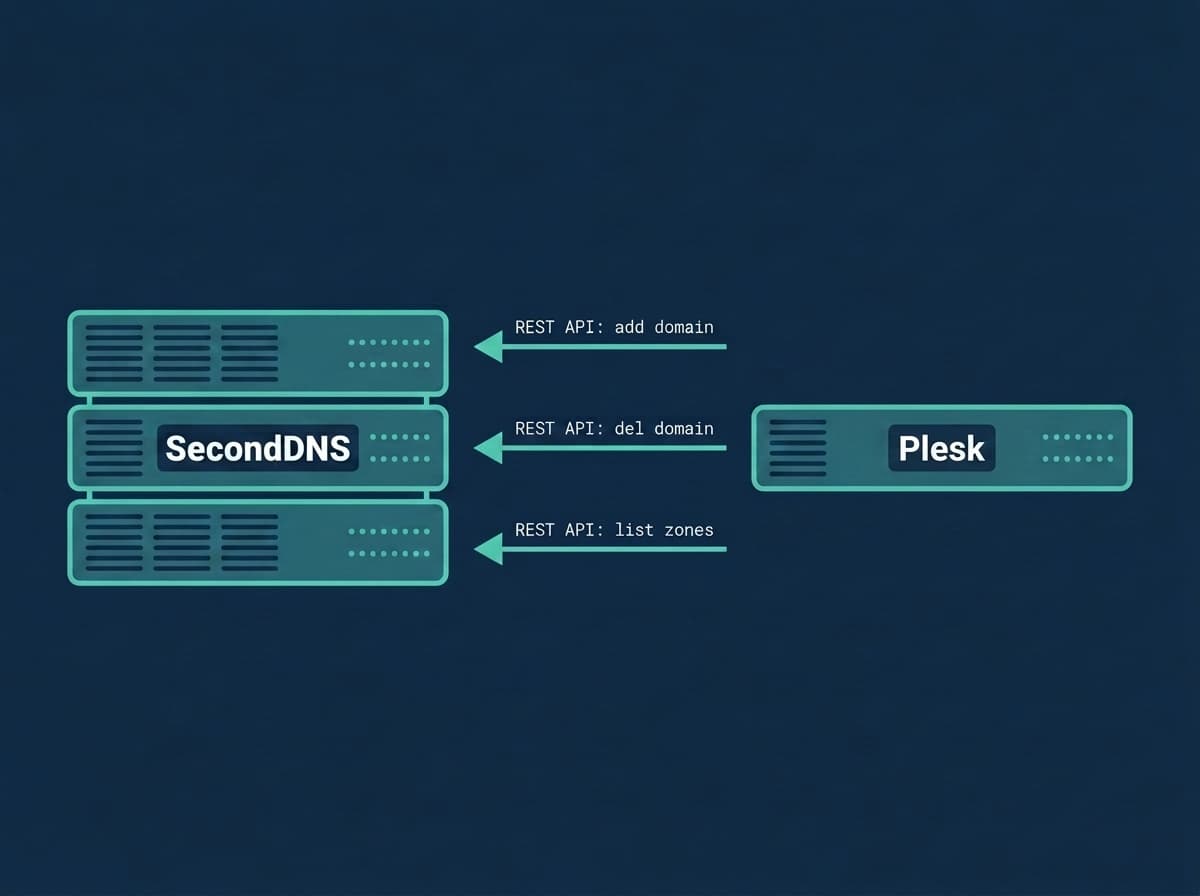
Plesk uses BIND as its DNS server. By default, all your domains rely on a single nameserver. If that server goes offline — for maintenance, hardware failure, or a DDoS attack — every domain becomes unreachable. Visitors get DNS errors, email stops delivering, and services time out.
A secondary DNS server keeps a synchronized copy of all your zones via AXFR (authoritative zone transfer). When the primary is unavailable, the secondary continues answering DNS queries for your domains. Your websites, email, and services stay online.
Most domain registrars require at least two nameservers, and RFC 2182 recommends three for production environments. Adding a secondary DNS is not just best practice — it is essential for production reliability.
Don't have a secondary nameserver yet? SecondDNS provides one on a free 3-month trial, no credit card required — get started, then follow the steps below.
How Plesk DNS Works
Plesk runs BIND (named) and manages its configuration through its own DNS templates. This is the key thing to understand: you do not edit named.conf by hand on a Plesk server, because Plesk regenerates that file whenever it rebuilds the DNS configuration. Any manual change to named.conf can be overwritten the next time Plesk touches a zone.
There are two layers that matter:
1. The DNS templates (Tools & Settings > DNS Settings) control what records every new zone gets — including which nameservers are listed in the NS records. 2. The Transfer Restrictions Template and Server-wide DNS settings hold custom BIND options (such as allow-transfer and also-notify) that survive config regeneration, because Plesk merges them back in each time.
When you configure secondary DNS for Plesk, you work with both layers: the template so new zones list your SecondDNS nameserver, and the transfer/server-wide settings so AXFR transfers keep working after Plesk rewrites named.conf. The SecondDNS installer handles both, but Step 2 below shows how to make the AXFR settings permanent yourself.
How Secondary DNS Integration Works
The SecondDNS integration for Plesk uses event handlers that Plesk calls automatically after DNS events:
1. When you create a domain, subscription, or domain alias — the handler registers the zone with SecondDNS via API 2. SecondDNS pulls a full copy of the zone from your server via AXFR 3. When you delete a domain or alias — the handler removes it from SecondDNS
In Plesk, every domain, additional domain, and domain alias has its own DNS zone, so each one is registered separately. All zone changes are propagated automatically through the BIND NOTIFY mechanism. No manual steps, no cron jobs, no stale records.
Plesk Secondary DNS Requirements
Before you begin, make sure you have:
- Plesk Obsidian (18.x or later) with the BIND DNS server - Root (sudo) access to the server - A SecondDNS API key (get one at seconddns.com/dashboard/api-key) - Your SecondDNS nameserver IP (find it in the dashboard under Settings > Nameservers) - TCP port 53 open inbound for the SecondDNS server IP
The zone transfer protocol AXFR uses TCP port 53, not UDP. Many firewall configurations only open UDP 53 for regular DNS queries. If TCP 53 is blocked, zone transfers will silently fail even though regular DNS resolution works.
Open TCP Port 53 for DNS Zone Transfers
Before running the installer, open TCP port 53 for the SecondDNS server. Find your nameserver IP in the dashboard under Settings > Nameservers, then replace SECONDARY_IP in the commands below.
If you use the Plesk Firewall extension, add a rule under Tools & Settings > Firewall that allows incoming TCP on port 53 from SECONDARY_IP.
If you manage the firewall directly with firewalld:
firewall-cmd --permanent --add-rich-rule='rule family="ipv4" source address="SECONDARY_IP" port port="53" protocol="tcp" accept'
firewall-cmd --reload
Or with iptables:
iptables -I INPUT -s SECONDARY_IP -p tcp --dport 53 -j ACCEPTTo verify TCP port 53 is reachable from outside:
nmap -p 53 -sT YOUR_SERVER_IPInstall Secondary DNS on Plesk
Run the one-liner as root:
curl -sL https://raw.githubusercontent.com/seconddns/dns_integrations/main/hosting-panels/plesk/install.sh | bash -s -- --api-key=YOUR_API_KEYThe installer will: - Verify your API key against the SecondDNS API - Detect your server IP address (IPv4 and IPv6) - Ask which IP address to use if multiple are available - Install event handler scripts - Register 12 Plesk event handlers for domain create, rename, and delete events - Replace the default ns2.<domain> with your SecondDNS nameserver in the DNS template - Configure BIND for AXFR (allow-transfer, also-notify) - Offer to sync existing domains
After installation, verify the DNS template manually — the automatic replacement may not always succeed:
Zone Records Template: Go to Tools & Settings > DNS Settings > Zone Records Template and confirm that the second NS record (ns2.<domain>.) has been replaced with the SecondDNS nameserver shown in your dashboard.
Zone Settings Template: Go to Tools & Settings > DNS Settings > Zone Settings Template and find Primary Name Server. It is a dropdown populated from the NS records in the template — change it from (Autoselect) to the entry for your Plesk server's nameserver (ns1.<domain>). This ensures new zones use your Plesk server as the authoritative primary, not the secondary.
Make Zone Transfer Settings Permanent
The installer configures BIND directly, but Plesk may overwrite named.conf during config regeneration. To make the AXFR settings survive, set them through Plesk's own DNS settings — Plesk merges these back in every time it rebuilds the configuration. There are two parts: the transfer permission and the NOTIFY target.
Allow the transfer (native Plesk way). Use the Transfer Restrictions Template, which is purpose-built for granting AXFR to a secondary across all zones and is validated by Plesk:
1. Go to Tools & Settings > DNS Settings > Transfer Restrictions Template 2. Add your SecondDNS nameserver IP (from the dashboard under Settings > Nameservers) to the list of allowed addresses 3. Click OK / Apply
Send NOTIFY on change. Add also-notify to the server-wide settings:
1. Go to Tools & Settings > DNS Settings > Server-wide Settings 2. In the Additional DNS settings field, add (replace SECONDARY_IP with your nameserver IP):
also-notify { SECONDARY_IP; };3. Click Apply.
The Transfer Restrictions Template grants the SecondDNS server permission to pull the zone (allow-transfer), and also-notify tells BIND to send a NOTIFY so the secondary refreshes immediately after a change. Because both live in Plesk's settings rather than in named.conf, zone transfers keep working even after Plesk regenerates its DNS configuration.
Sync Existing Domains to Secondary DNS
If you had domains in Plesk before installation, sync them to the secondary:
seconddns syncThis compares your local zones against SecondDNS and adds any missing ones. The command is idempotent — safe to run multiple times.
To check a specific zone or list everything on the secondary:
seconddns status example.com
seconddns list
Deleting is separate: plain `seconddns sync` only adds. To also remove zones this panel no longer serves, run `seconddns sync --prune` — it refuses when it would drop more than half of this server's zones, which is what an unreadable panel looks like.
Verify Your Plesk Secondary DNS Setup
Create a test domain in Plesk and watch the handler log:
tail -f /var/log/seconddns.logYou should see:
Zone created: testdomain.com (plesk event handler)
[+] Zone testdomain.com added to SecondDNS
Then query both nameservers. Replace SECONDARY_IP with your nameserver IP from the dashboard:
dig @YOUR_SERVER_IP testdomain.com SOA +short
dig @SECONDARY_IP testdomain.com SOA +short
Both should return the same SOA serial in YYYYMMDDNN format. If the secondary shows a lower serial or returns SERVFAIL, check TCP port 53 access and the handler log.
Supported Domain Types
The integration handles all Plesk domain types:
- Default domains (the first domain in a subscription) - Additional domains - Domain aliases (for both default and additional domains)
Each type has its own DNS zone in Plesk and triggers the event handler automatically when created or deleted through the Plesk control panel or CLI.
IPv4 and IPv6 Support
The installer automatically detects which protocols your server supports and which are available on the SecondDNS side. If both IPv4 and IPv6 are available, you can choose which to use for zone transfers.
The AXFR configuration (allow-transfer and also-notify) is set up with the correct IP address for your chosen protocol. If you use both, add each address to the allow-transfer and also-notify blocks in the server-wide settings.
If SecondDNS Is Unreachable
Zone changes are never sent straight to the API. Every hook writes the operation to a local queue, and a background worker delivers it in order, retrying with a growing delay while SecondDNS is unreachable — a maintenance window or a network problem costs nothing, and nothing your customers do in the panel is lost.
Check the queue at any time:
seconddns statuspending=0 failed=0 oldest_age_seconds=0 last_error=A non-zero `pending` with a `last_error` means delivery is waiting, not that anything was dropped. `failed` counts operations SecondDNS rejected outright; `seconddns-queue retry --all` requeues them.
Troubleshooting Plesk Secondary DNS
Zone not appearing on secondary Check the log at /var/log/seconddns.log. Verify the event handlers are registered:
plesk bin event_handler --list | grep seconddnsYou should see 12 handlers (4 for creation, 4 for rename, 4 for deletion). If they are missing, re-run the installer.
AXFR refused Make sure your SecondDNS IP is in the Transfer Restrictions Template (Tools & Settings > DNS Settings > Transfer Restrictions Template). That is the setting that survives Plesk config regeneration — if transfers work at first and break later, the IP is missing from the template and only existed in named.conf.
Connection timeout Verify TCP port 53 is open between your server and SecondDNS. AXFR uses TCP, not UDP. The most common cause of failed transfers is TCP 53 blocked at the firewall while UDP 53 is open.
Settings revert after a while This means the AXFR directives were added only to named.conf, not through Plesk's settings. Add the IP to the Transfer Restrictions Template and also-notify to the Server-wide Settings as shown in Step 2.
Test a handler manually
NEW_DOMAIN_NAME=example.com bash -c /usr/local/bin/seconddns-plesk-domain_create.shUninstalling
To remove the integration:
curl -sL https://raw.githubusercontent.com/seconddns/dns_integrations/main/hosting-panels/plesk/uninstall.sh | bashThis removes the event handlers, scripts, and configuration file. Your zones on the secondary DNS are not deleted automatically — remove them through the SecondDNS dashboard or run:
seconddns remove-allbefore uninstalling if you want them cleared from the secondary.
Note: the SecondDNS IP in the Transfer Restrictions Template and the also-notify line in the Server-wide Settings (Step 2) are not removed by the uninstaller. Delete them manually from Tools & Settings > DNS Settings if you no longer need them.
It lists what it would remove and asks for the master IP typed back before doing anything; pass `--yes` to skip that in a script.
Related Guides
If you manage other hosting panels or want to extend your DNS redundancy setup, see:
- How to Add Secondary DNS to cPanel/WHM - How to Add Secondary DNS to DirectAdmin - How to Add Secondary DNS to CyberPanel - Secondary DNS Monitoring with Nagios - Secondary DNS Monitoring with Zabbix - How to Set Up a Secondary DNS Server - Understanding AXFR Zone Transfers - DNS Redundancy: Why It Matters and How to Achieve It - Secondary DNS Server: What It Is and How It Works